
CAP Base Settings
These are common details that are repeated across the CAP Composer tool and are set only once per country.
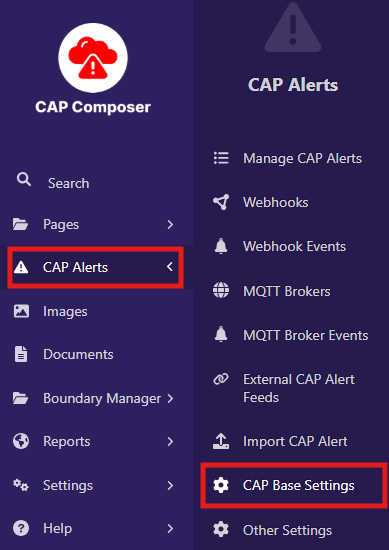
You can configure these details by navigating to CAP Base Settings page in the Wagtail admin interface:
Sender Details
These include:
CAP Sender name - Name of the sending institution
CAP Sender email - Email of the sending institution
WMO Register of Alerting Authorities OID - Use the official OID assigned to your country in the WMO register of alerting authorities.
Logo of the institution (optional)
Contact details - This is the contact details to be included in the CAP Alert.

Hazard Types
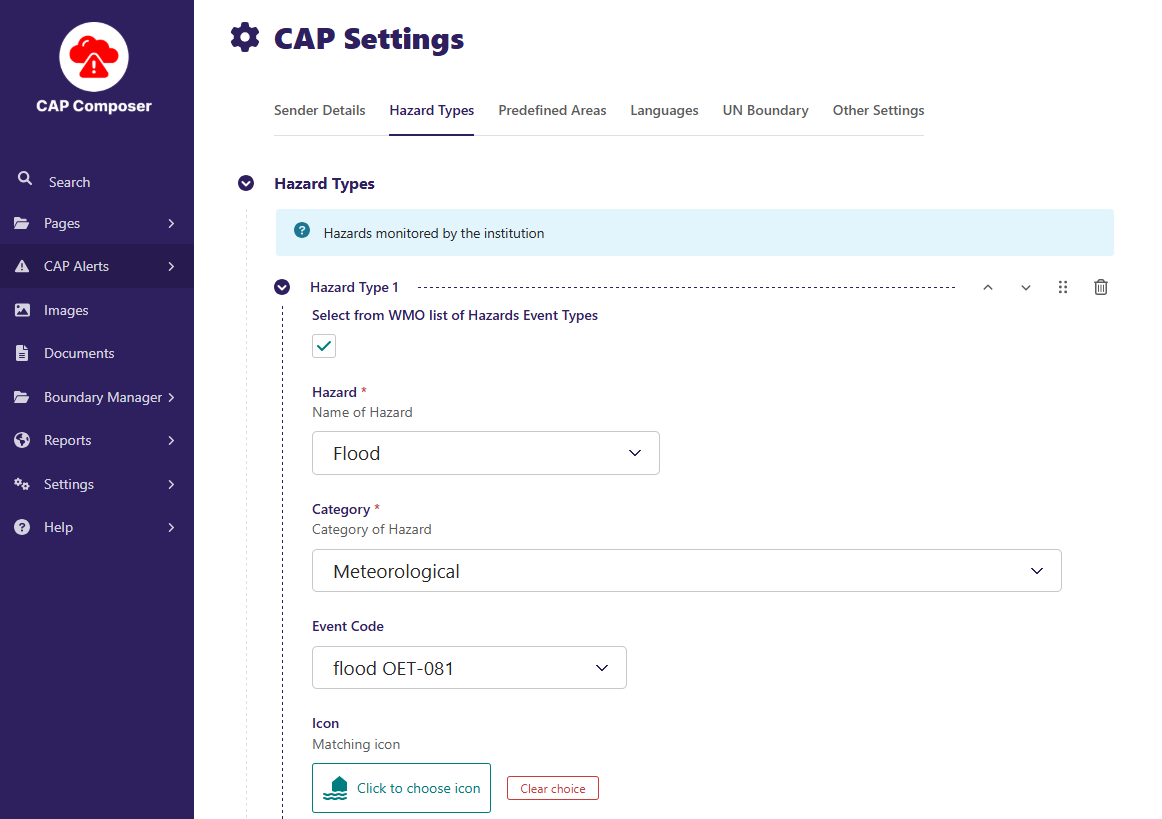
Here the NMHSs input the different types of hazards they monitor. They can select the hazards from a WMO predefined list of hazards or create a new custom hazard/event type. Each hazard type can be associated with an Icon, a Category and an Event Code
Predefined Areas
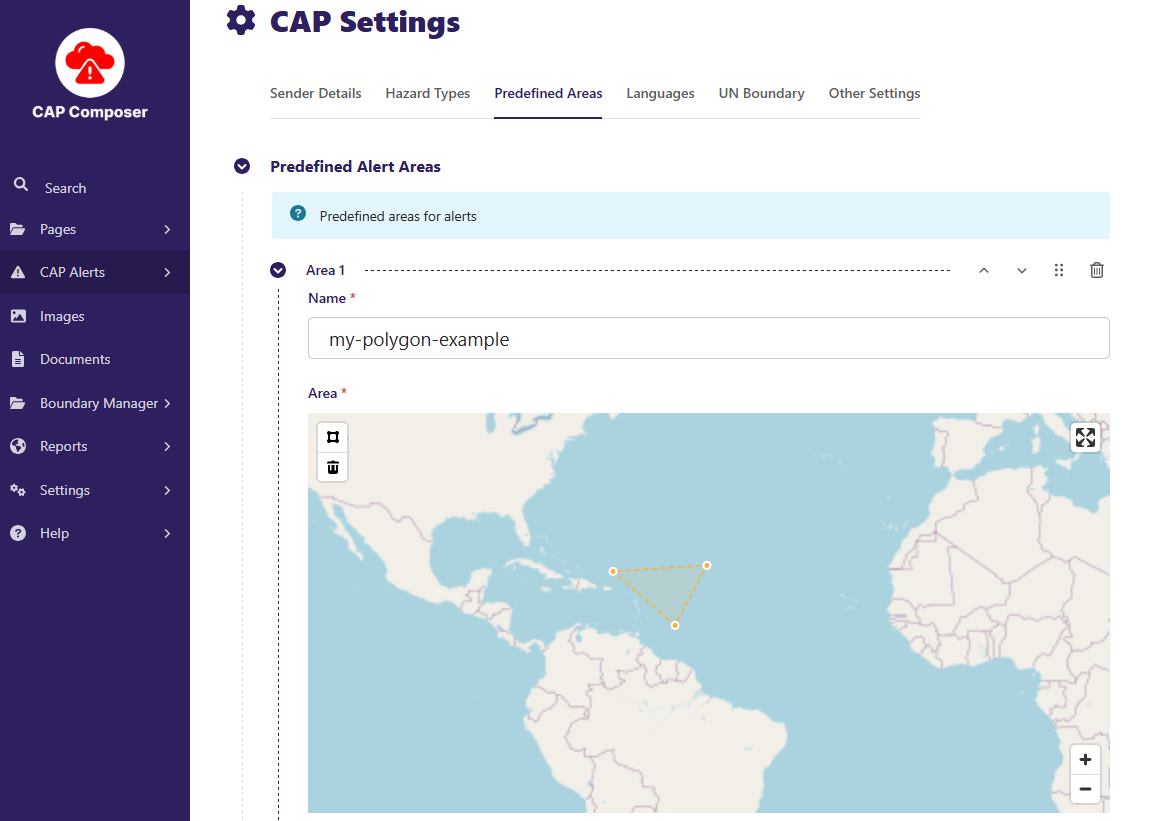
Here you can create a list of common regions that are known to experience alerts. This will save you time so that you do not have to draw the same area each time for new alerts.
NOTE: While drawing a boundary, if the area falls out of the UN Boundaries set, a warning and button will appear to snap the area back to the UN Boundaries. Snapping boundaries back to the UN Boundary ensures that the CAP Alert is displayed on Severe Weather and Information Centre (SWIC) platform.
Languages
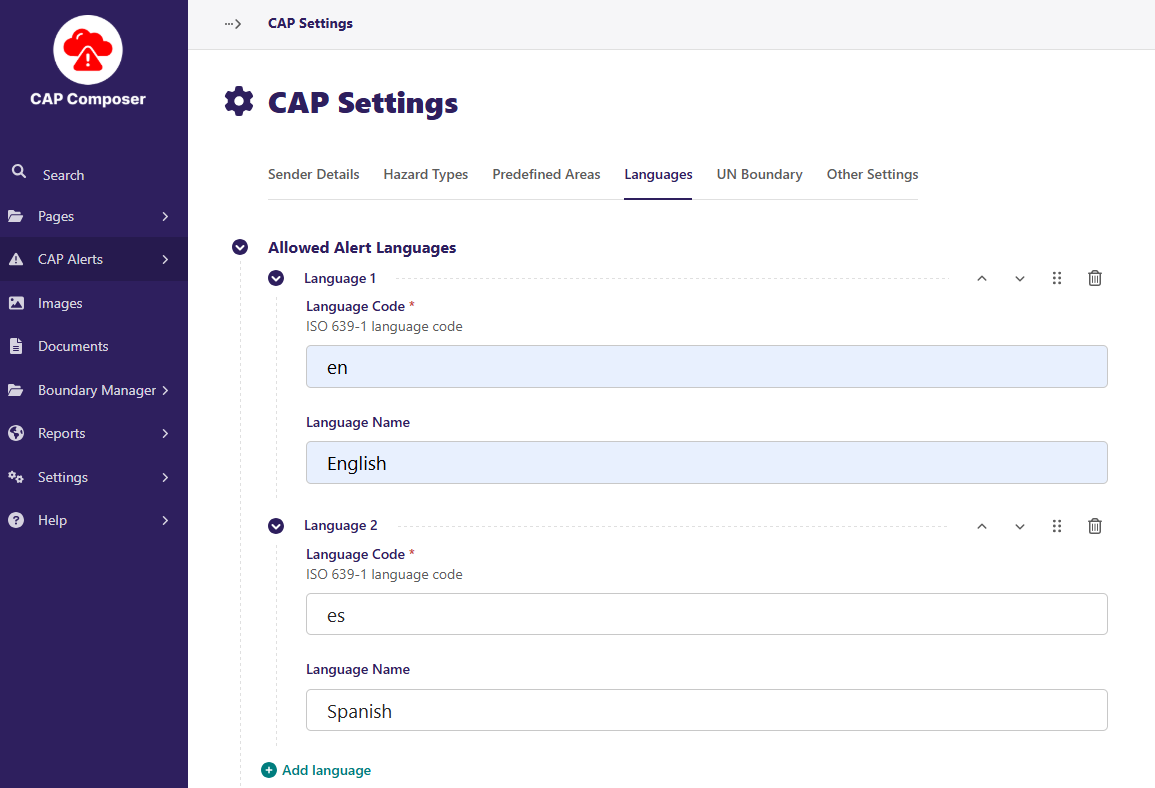
To add one or more languages, the Language code such as es and Language name such as Spanish. This languages will be useful when creating multiple Alert Infos for a CAP Alert where one alert info corresponds to another one Alert info by its translated language.
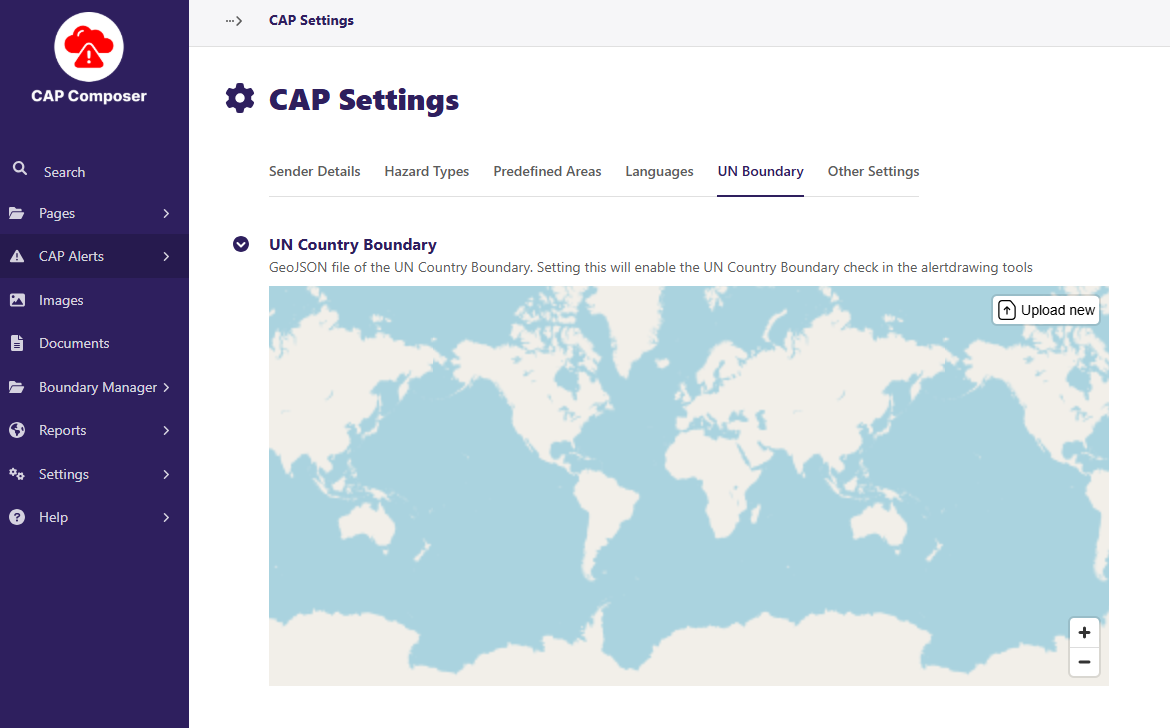
UN Boundary
This section allows you to upload a GeoJSON file of the UN Country Boundary. Setting this will enable the UN Country Boundary check in the alertdrawing tools.
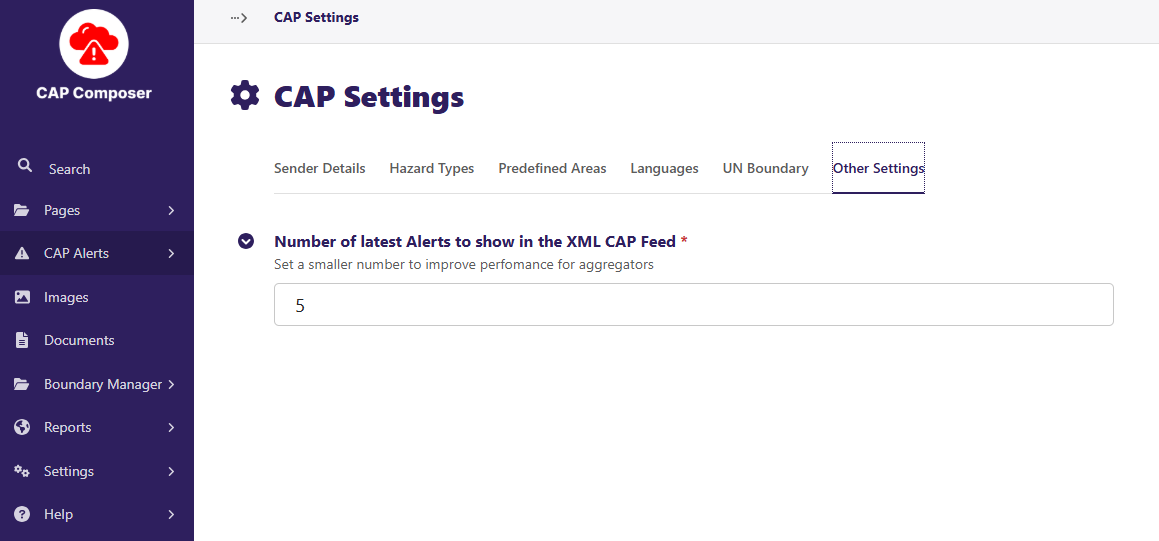
Other Settings
Here you can limit the number of CAP Alerts that can are displayed at the same time on the website, reducing it will help to improve performance.
Remember to SAVE the changes after editing the settings.
Next: You can now optionally proceed to the Setting Boundaries section to set up the boundaries that can be used when creating the alert area.
Or you can directly proceed to the Creating and Issuing Alerts section to learn how to start creating CAP Alerts using the CAP Composer.